
Windows app / Screen capture & visual guides
Snap37
Capture. Create. Share.
Capture your screen, explain it with annotations, and share a polished result. Snap37 brings screenshots, silent recordings, and visual step-by-step guides into one Windows workspace.
Latest build · v0.2.0-beta.6
Explore Snap37See the workflow / Official demo
Watch on YouTube Built for Windows 11 Editable annotations & guides Captures stay local
01 / Capture
Start with the right capture.
A small detail, a whole window, or a longer walkthrough. Choose the capture that tells the story.
A region. A window. A display.
Select exactly what you need with region, window, or full-display capture. A crosshair and magnifier help you frame the details.
Go beyond the screen.
Stitch a scrolling capture into a longer image, review the result, and use manual capture when a page needs a different approach.
Show it in motion.
Record a window, display, or region at 30 or 60 FPS. Pause, resume, trim, and export a silent MP4 or GIF.
Turn a task into a guide.
Collect steps as you work, add titles and notes, reorder the sequence, and export a visual guide as PDF or images.
02 / Create
Make every detail count.
Keep the original. Build the explanation on top, with an editor made for clear communication.
Point it out.
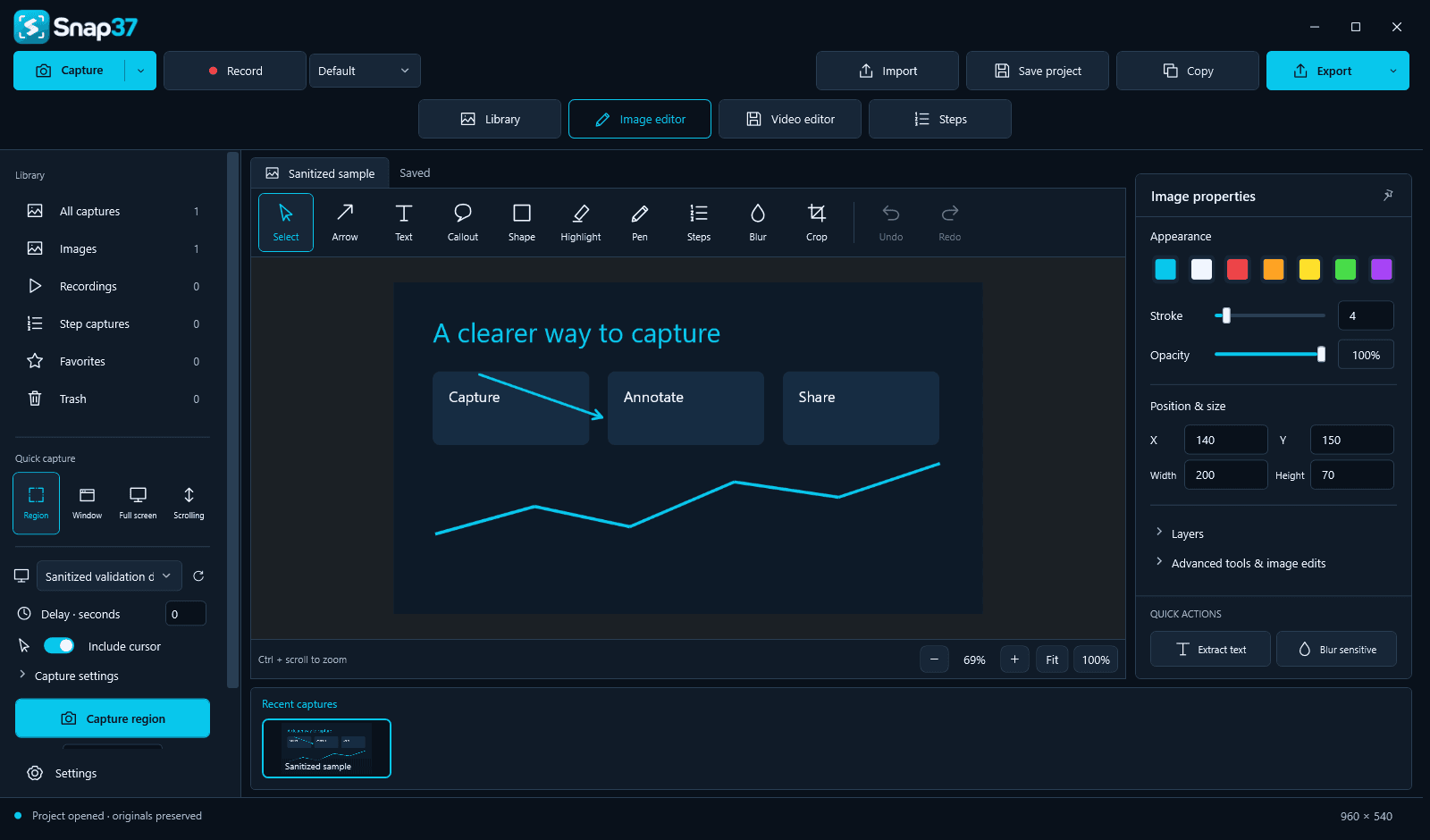
Add arrows, text, callouts, highlights, shapes, and numbered steps. Move and restyle editable layers as your explanation takes shape.
Finish the image.
Crop, resize, rotate, and remove unwanted strips. Add a frame, rounded corners, or a shadow for a polished export.
Copy the words.
Extract text from an image with offline Windows OCR. Recognition uses the language packages installed on your device.
Review before you share.
Smart Redact suggests sensitive details to review. Use opaque redaction to cover private content, then share a flattened export.
03 / Share
Keep your work within reach.
A local workspace for captures you want to find again, improve later, and share on your terms.
A library that stays useful.
Search captures, add tags, mark favorites, and return to editable projects. Your capture library is stored on your device.
Ready for the next destination.
Copy an image to the clipboard or export PNG, JPEG, WebP, and PDF. Recordings export as MP4 or GIF; step guides export as PDF or PNG.
Your shortcuts, your workflow.
Configure global hotkeys for captures, step guides, and recording. Adjust capture and recording preferences from one settings screen.
Local editing. Deliberate sharing.
Captures are not automatically uploaded. Choose what to export and where to send it, while account sign-in handles ownership and device activation.
Inside the app
A closer look at Snap37.
Library, editor, and settings. Open a screenshot for the full view.
From screen to shared
One simple workflow.
- 01
Capture
Choose a region, window, or display. Use a recording or step guide when one image is not enough.
- 02
Explain
Add arrows, labels, highlights, and numbered steps. Keep the layers editable for the next revision.
- 03
Review
Check the result and cover private information with opaque redactions before exporting.
- 04
Share
Copy to the clipboard or export an image, PDF, MP4, or GIF for your next conversation.
Make room for your next idea
Get Snap37.
Add an available edition to your DillaDev library, then install it through the launcher. Sign in with the same account on both.
System requirements
- Account
- DillaDev Studios ownership and activation; up to 3 devices and 7 days offline after renewal.
- Capture
- Windows capture restrictions apply; protected content can be unavailable.
- Runtime
- Self-contained .NET desktop runtime included; normal use does not require administrator rights.
- Operating system
- Windows 11 x64 (build 22000 or later). Minimum-version clean-machine validation is pending.
- Optional features
- HEIF requires a working Windows encoder. Background removal requires the optional, verified local model.
Where do my captures go?
Snap37 stores captures and editable projects locally and does not automatically upload them. You choose what to export or share. Signing in and activating a device require an online connection.
Does screen recording include audio?
Recordings are silent. Snap37 captures a window, display, or region and exports MP4 or GIF; microphone and system audio capture are not included.
How should I share a redacted screenshot?
Review every suggested redaction, use opaque redaction for sensitive information, and share the flattened export or clipboard image. Blur and pixelation are not secure redaction. Editable projects retain original pixels, so keep those projects private.
Do I need extra downloads?
The Windows installer is self-contained, so a separate .NET runtime is not required. OCR needs installed Windows language packages. Optional HEIF export needs an encoder, and background removal needs a verified model download or import.
Your next capture starts here